The product is clipped
Check the thumbnail crop before changing the image. A larger canvas or more padding can help; resizing alone cannot reveal cropped-out detail.
Inspect the crop →Ecommerce tools
Start with the exact job you need to finish: check a marketplace photo locally, remove backgrounds in bulk, isolate held products, resize for marketplaces, or prep a Shopify catalog.
Free and local
Check dimensions, transparency, thumbnail crops, and prepare a white JPEG without uploading your photo.
Free and local
Exact Amazon, Etsy, Shopify, eBay, Poshmark and Instagram sizes, with nothing cropped.
Free to try
Compress one JPEG, PNG, or WebP product photo without an account. Dimensions and format stay the same.
Free product photo tool
Remove the background from a product photo for free, right on this page. Get a white-background PNG sized for Amazon, Etsy, Shopify, eBay or Poshmark. No account needed.
Open toolBulk background remover
Remove product photo backgrounds in batches, apply repeatable output settings, and review final exports before marketplace upload.
Open toolHand-aware product isolation
Use CatalogCut's hand-aware product isolation to clean up held and worn product photos while protecting watches, jewelry, straps, and accessories.
Open toolAmazon-ready images
Create clean Amazon-ready white background product photos with square crops, consistent padding, and marketplace-friendly exports.
Open toolEtsy photo resizer
Resize Etsy product photos, clean backgrounds, preserve handmade detail, and export consistent listing images in a batch workflow.
Open toolShopify background remover
Remove Shopify product image backgrounds, keep collection grids consistent, and prepare catalog images for Shopify themes.
Open toolAI batch editor
Batch edit product photos with AI background removal, product isolation, shadows, marketplace sizing, presets, and ZIP export.
Open toolEach workflow combines a defined input job with repeatable background, crop, padding, shadow, and export settings. Start with a representative sample, review exceptions, then reuse the proven preset for the remaining catalog.
Use a guide when you are still choosing standards, diagnosing an output defect, or confirming marketplace requirements. Use a tool page once the job and acceptance criteria are clear.
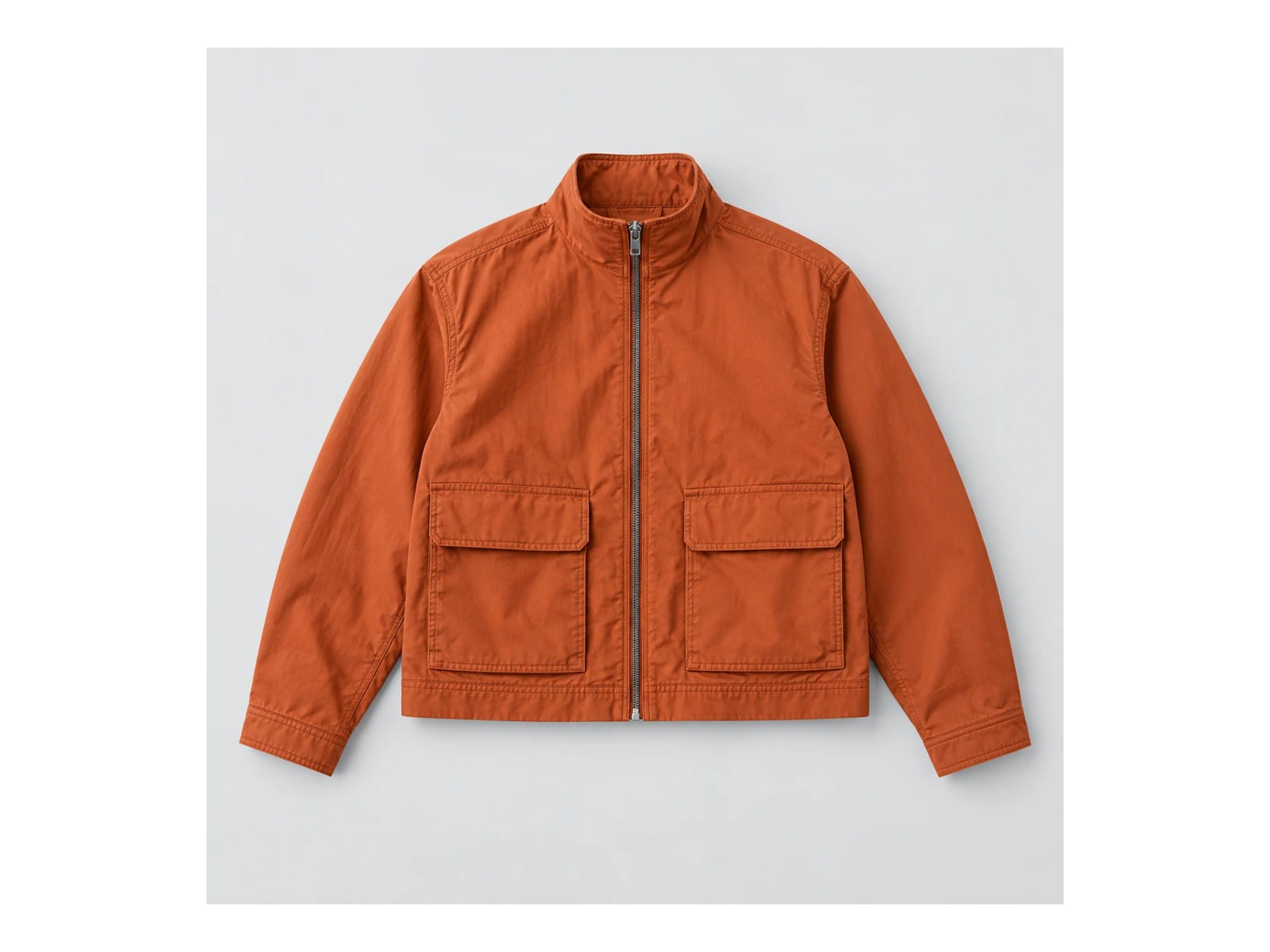
This jacket export went through CatalogCut’s JPEG optimizer. Compare the actual files, then decide whether the detail is ready for your listing.
43% smaller in this saved example. Savings vary with the input and quality setting.
Compression reduces file size; it does not fix framing, restore missing detail or approve a marketplace listing.
The fastest useful edit starts with a specific problem. Here are four common starting points.
Check the thumbnail crop before changing the image. A larger canvas or more padding can help; resizing alone cannot reveal cropped-out detail.
Inspect the crop →Use background removal when the product already has the right angle and lighting. Inspect handles, reflective edges and transparent parts.
Prepare a Cutout batch →If the composition is already right, compare an optimized file at the same dimensions. Look at texture and small text before accepting it.
Compare file quality →Stage creates a new composition from your source. Choose the fidelity mode deliberately; a scene is a separate job from compression.
Explore scene direction →