Jewelry photography on a white background: reflections, edges and color
Photograph jewelry on white with controlled reflections and detail. Check metal texture, stone color, transparent edges, scale and marketplace requirements.
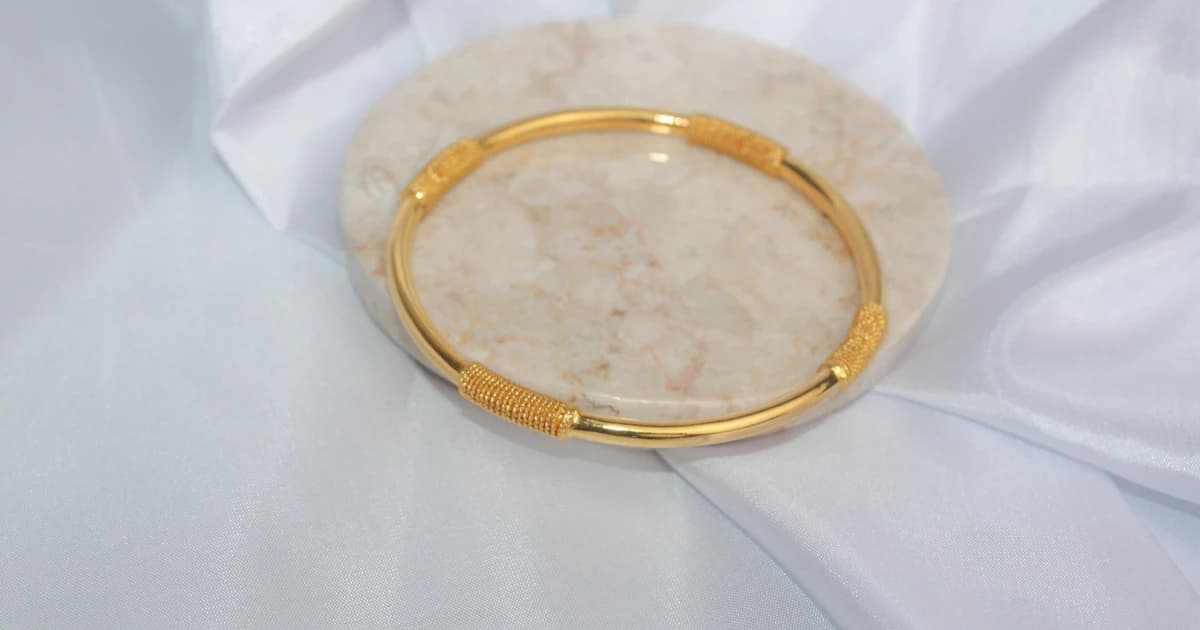
To photograph jewelry on a white background, capture the real piece with controlled reflections and enough detail, then clean the background without changing the metal, stones or construction. A white export cannot repair missing detail or establish whether a gemstone's color, size or material is accurate.
This is a capture and editing checklist, reviewed on October 21, 2026. It is not a gemstone grading method, a platform approval guarantee or a report of product tests. CatalogCut provides background editing and generated imagery; neither establishes the physical properties of the item you sell.
Why is jewelry difficult to photograph on white?
A polished ring reflects its surroundings. A transparent stone also interacts with the light and environment behind and around it. Making the background white changes the presentation, but does not make the piece independent of that environment.
GIA's explanation of diamond appearance describes how lighting, surroundings and even the viewer or camera affect the pattern of light and dark in a diamond. A dark facet in a photograph is not automatically dirt to remove.
White metal against white can lose its outline. A thin chain can disappear into the background. A bright highlight can conceal engraving, while a dark reflection can make polished silver look like a different finish. These problems need different corrections.
Treat the white background as one part of a product record. The finished image still needs to show the item's outline, surface and construction. A uniformly bright object with no readable edges is not a useful substitute for accurate photography.
How should you prepare the real piece and camera?
Clean the piece using a method appropriate to that item, then handle it carefully. Do not assume every stone, coating or setting tolerates the same cleaning treatment. The photographic goal is to remove loose dust and fingerprints without altering the product.
GIA's photography guidance recommends cleaning jewelry, stabilizing the camera and checking focus. Inspect the item before shooting so you can distinguish removable contamination from real scratches, inclusions, patina or wear.
Use a tripod or a stable support. Frame the whole piece with room for cropping, and capture a separate detail view rather than relying on an extreme crop of a distant shot. Check the clasp, central stone, prongs and engraving before dismantling the setup.
There is no single camera setting that guarantees all of a ring is sharp. Its depth, angle, light and your camera matter. Take a close look at both the nearest and farthest important features. If a key area is blurred, change the capture rather than asking a background tool to invent detail.
For a phone, clean the lens, avoid touching the setup while taking the picture and inspect the saved file rather than only the small camera preview. A crisp preview of the central stone can hide an out-of-focus clasp.
How can you control reflections without flattening the metal?
Begin with diffused light. GIA explains that diffusion softens shadows and can show gentle tonal transitions in polished metal. Keep the setup simple enough that you can identify which light or surrounding object creates a reflection.
A white card can provide a broad light reflection; a dark card can help define an edge. Move one card or light at a time and inspect the result. Canon's jewelry photographer interview illustrates using black and white cards, plus diffusion, to control reflections.
The goal is readable material, not the elimination of every reflection. Some transition from light to dark helps a curved band look curved. Removing that information can make polished metal appear like flat plastic.
For textured metal, retain the pattern that makes the finish identifiable. Brushed, hammered and polished surfaces should not be edited toward the same smooth appearance. If a reflection obscures a hallmark or texture, adjust the light and capture another frame before retouching.
Avoid solving a capture problem with a blanket instruction to remove all glare. A small bright highlight and a featureless white patch are different things. Compare with the actual piece and choose the image that communicates it clearly.
How do you keep stone and metal color credible?
Use one consistent lighting type for the reference images. GIA recommends avoiding mixed color temperatures and using diffusion when showing gemstone color. A window mixed with a warm room lamp makes it harder to judge which cast belongs to the lighting.
Set color balance against a suitable neutral reference under the same light, then compare the photograph with the piece while it is still available. Do not use a pale gemstone or warm gold band as the thing that must become neutral white.
Keep edits restrained. Increasing saturation to make a stone look more appealing can also imply a different color. Removing every warm reflection from gold can change the appearance of the metal. An editor cannot verify composition, carat weight, treatment or grade.
Some stones have appearance effects that a single photo cannot explain. Photograph additional views or lighting conditions where useful, describe the conditions and avoid implying that one dramatic frame represents every environment.
Screens and viewing conditions also differ. That is a reason to make and describe a careful reference image, not a reason to abandon color control or publish an embellished version.
What should you inspect before and after background removal?
The table below combines GIA and Canon's capture guidance with practical editing checks. The checks are a proposed review workflow, not measured pass criteria.
| Area | Capture or editing check | Stop and recapture when |
|---|---|---|
| Polished metal | Retain gradients and a clear outline; compare reflections with the original | A bright patch hides the actual shape or hallmark |
| Textured finish | Preserve brushed lines, hammer marks and intentional surface variation | Smoothing makes the finish look like another material |
| Transparent or pale stone | Compare facets, outline and pale boundary areas against the source | The edge or internal detail is absent in the source |
| Prongs and fine chains | Check every thin connection and fastening at full size | Blur prevents you from determining the real outline |
| Open spaces | Remove background from holes while keeping the surrounding construction | A setting or chain link is too blurred to separate accurately |
| Color and scale | Compare the piece with the reference and provide measurements | The image implies a different size, tone or construction |
Open the source beside the edited file. A missing prong or disconnected chain is easy to overlook if you inspect only the new white image.
Use the background removal quality checklist as a repeatable review order. Keep the original and an editable version so an error does not force you to start from a compressed listing download.
How do you handle translucent edges and gaps in a setting?
Start by distinguishing the actual outline from light passing through or reflecting from the item. A transparent region is not necessarily empty background. Conversely, a gap inside a ring or link may need the new background to show through.
Inspect the cutout over both a light and a darker temporary preview. This can reveal a pale halo, leftover background or an edge that has been removed. The alternate preview is an editing aid; export the background required by your destination.
Avoid thickening thin chains to make them easier to cut out. Do not paint a solid fill across a translucent stone merely because the resulting boundary is cleaner. If the source does not contain enough information, a new photograph is more defensible than a reconstructed guess.
A white-background file and a transparent file are different deliverables. In a white file, white pixels are part of the image. Transparency allows the destination to supply a background, with results that depend on that destination. The white background and transparent PNG guide explains that choice.
Which extra photos show scale and construction honestly?
Take a front or hero view, a side view and relevant back or fastening details. The useful set depends on the piece: a ring's profile, an earring's post and a necklace's clasp answer different questions.
State actual dimensions in the listing. Where the channel permits it, add a clearly described scale photograph or a worn reference. A close-up alone does not tell a buyer the length of a chain or the height of a setting.
Keep measurements separate from a decorative presentation. A generated hand or ear can make a piece appear larger or smaller, so it should not replace a real scale reference. Check any text or graphics against the channel's rules before placing them in an image.
For used or one-of-a-kind jewelry, photograph material condition clearly. Editing out a real scratch or repairing a bent component in the picture would hide information about the item being offered. Keep an honest detail image even if it is less visually tidy.
Do marketplaces all require the same white file?
No. Check the destination and the role of the image: a main listing photo, supporting detail and advertisement can have different rules.
Etsy's image guidance recommends at least 2000 pixels in both dimensions. That is a recommendation, not a reason to invent missing detail by enlarging a poor source. It also says transparent PNG is unsupported and transparent areas can appear black. Flatten onto your chosen background before uploading there.
Etsy's seller policy requires your own photos or video and excludes stock photos and artistic renderings, with limited exceptions. Disclosure that an item was made using AI is not blanket permission to substitute a generated picture for a photo of physical jewelry.
Use the marketplace image and AI rules guide for the relevant channel, then confirm its current policy. A background editor's preset cannot guarantee acceptance or that an image meets every category requirement.
Where can AI help without becoming evidence of the product?
Background removal can help prepare a real capture. Generated environments can help explore a presentation. These are different tasks from documenting the physical piece.
In CatalogCut, Preserve uses the photographed product in a new scene; Creative redraws it. The Stage explanation describes those modes. For jewelry, compare any result carefully for stone count, setting, chain links, texture, inscription and color. Neither mode certifies that the photographed material or gemstone is what the listing claims.
Keep a real photographic reference as the basis of the listing. Do not ask generation to recover unseen facets or construction, then describe the invention as a new angle of the actual piece. If you need a true side view, photograph the side.
Preserve any required provenance through later edits. Google's generative image guidance says not to remove embedded AI-source metadata. A visually clean background and an honest source record can coexist.
What to do next
Capture one clear reference view and one difficult detail before editing an entire collection. Try the product photo background remover, then compare the white result with the original for edges, texture, stones and scale before publishing.
Keep the jewelry readable while cleaning its background.
A reflective piece with thin connections, pale stones and open spaces.
- Control reflections
Use consistent light and controlled reflection surfaces so the shape and actual finish remain readable.
- Capture the details
Keep real detail and scale photographs with the source before altering the background.
- Inspect the cutout
Compare prongs, chains, stone edges, open gaps, texture and color against the original export.